
MSport APP has many amazing features. However, just like other APPs, sometimes, it maybe crashed. If your MSport APP is misbehaving, clear its cache can resolve over 80% of the problems.
In this article, we'll walk you through the key steps you should take to clear the MSport cache and make everything run smoothly again.
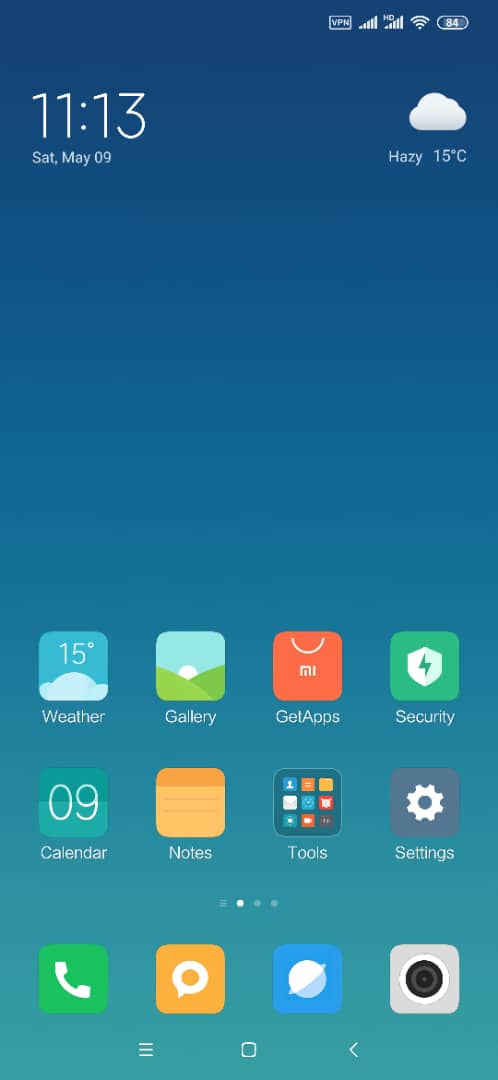
1st, Click "Settings" icon.
It is the 8th icon of the XIAO MI phone, but it may be different on other brands of phones.
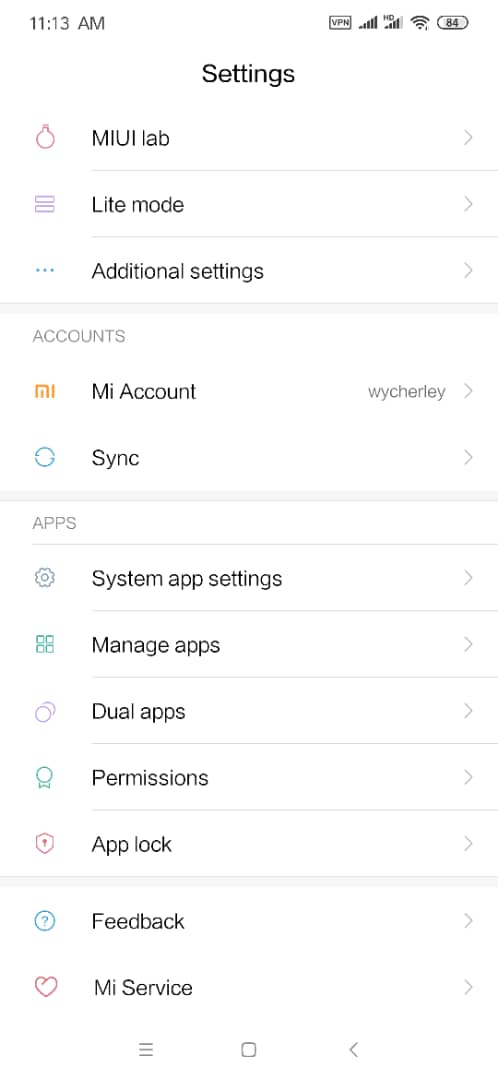
2nd, Click the "Manage apps" item.
It is the 2nd item in the "APPS" category.
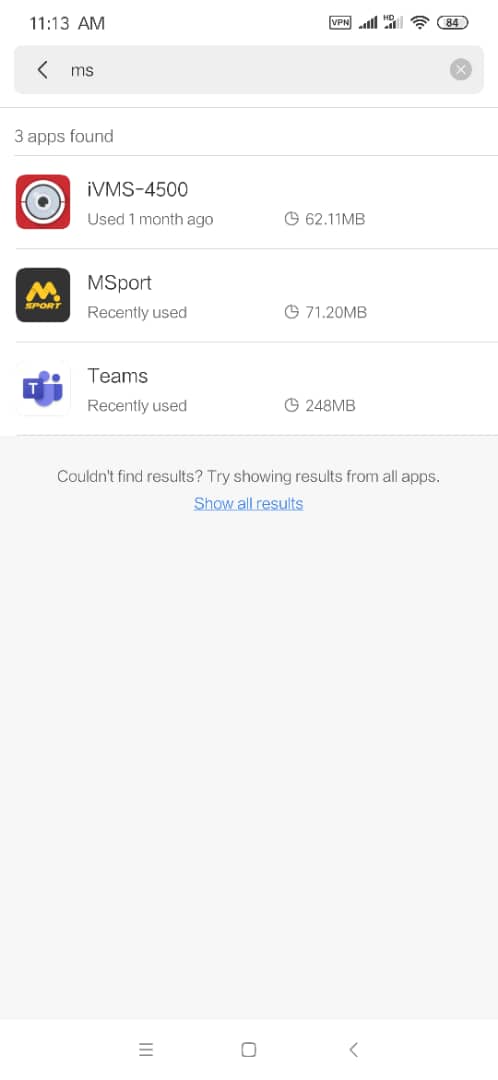
3rd, Find MSport and click it.
You can search the key word "msport" and locate the app quickly if you installed a lot of apps on your phone. In the following picture, it is the 2nd item. After you find MSport, just click it.
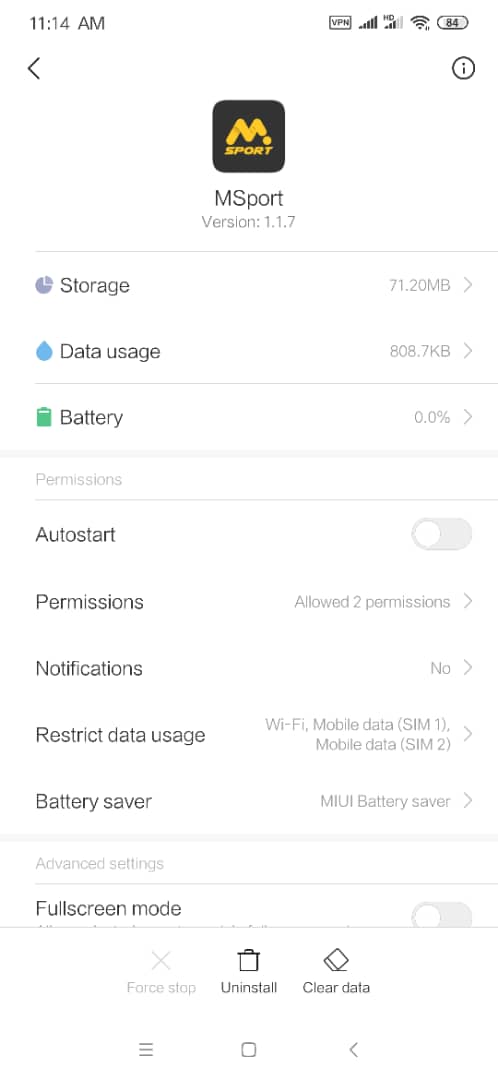
4th, In MSport APP detail information page, click the "Storage" option, which is the 1st item.
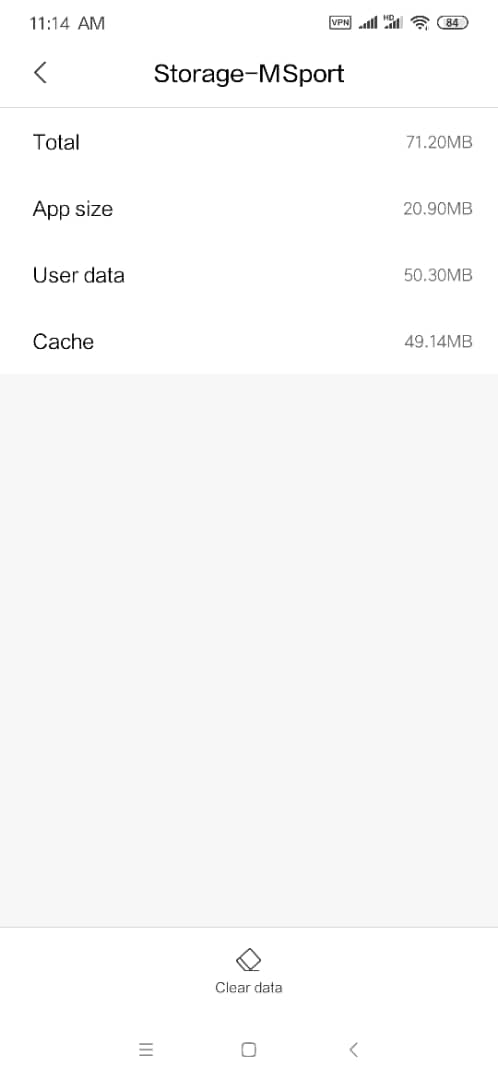
5th. In the storage page, you can see the app stoarge information. At the bottom, find the "Clear data" option, and click it.
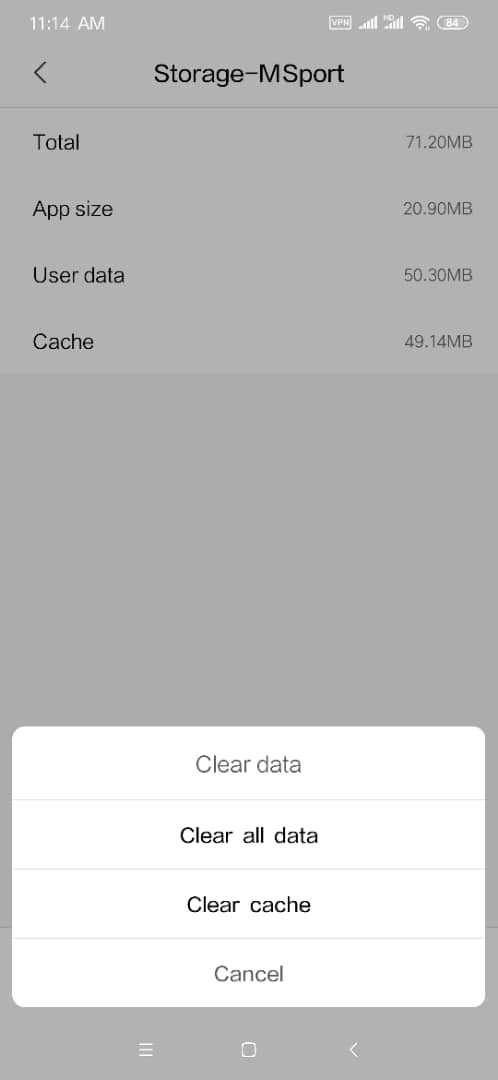
6th, there are 4 options will be poped up at the bottom. Click the "Clear cache" option to clear the cache data.
If you have tried "Clear cache" and it didn't work, please try to click the "Clear all data" option, which will also clear your login confidentials.
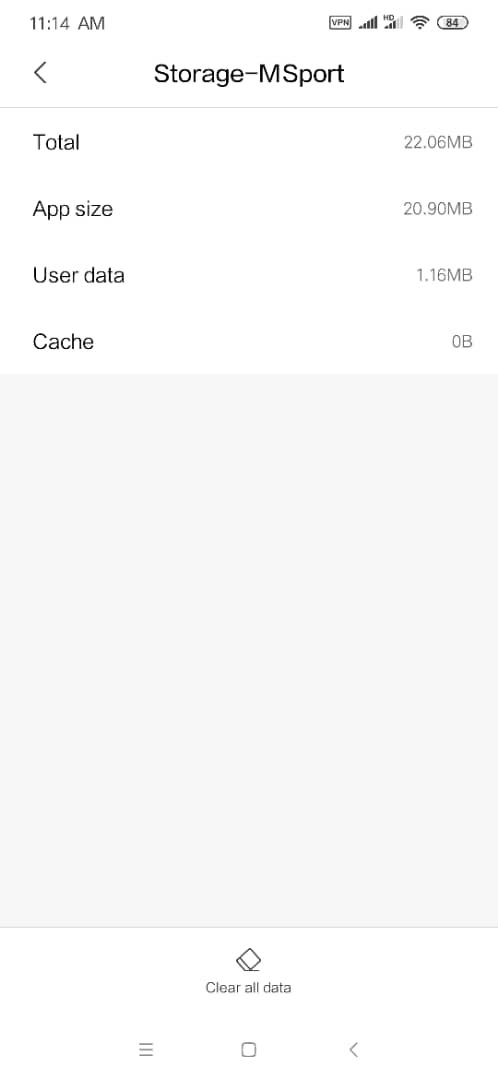
7th, after the cache is cleared, its storage will become 0 bytes, just as the following picture shows. After the cache is cleared, MSport App will run smoothly.
After you finished the above procedures, if the problem still exists, you can try to uninstall the APP and go to our official website www.msport.com to download the new version of our APP and install it again.
If you have any problems, please do not hesitate to contact us on our customer care line 01-8888331, or our 24/7 Live chat through our website https://www.msport.com/ng/support/about/contact-us?chat=1
Comments
0 comments
Please sign in to leave a comment.